How to Test SSD Read and Write Speed in Linux?
How to Test SSD Read and Write Speed in Linux?
- Why Enterprise RAID Rebuilding Succeeds Where Consumer Arrays Fail?
- Linus Torvalds Rejects MMC Subsystem Updates for Linux 7.0: “Complete Garbage”
- The Man Who Maintained Sudo for 30 Years Now Struggles to Fund the Work That Powers Millions of Servers
- How Close Are Quantum Computers to Breaking RSA-2048?
- Why Windows 10 Users Are Flocking to Zorin OS 18 Instead of Linux Mint?
- How to Prevent Ransomware Infection Risks?
- What is the best alternative to Microsoft Office?
How to Test SSD Read and Write Speed in Linux?
Testing your SSD’s performance in Linux is essential for diagnosing issues, verifying specifications, or simply understanding your storage capabilities. This guide covers several methods to benchmark your SSD’s read and write speeds.
Why Test SSD Speed?
Before diving into the methods, it’s worth understanding why you might want to test your SSD.
Common reasons include verifying that your drive is performing as expected after installation, troubleshooting performance issues, comparing different storage devices, or ensuring your SSD hasn’t degraded over time.
When and Why You Need Antivirus on Linux (and How to Install ClamAV)
Prerequisites
Most of these tools require root privileges, so you’ll need sudo access. Additionally, some tools may need to be installed if they’re not already on your system.
Method 1: Using hdparm (Quick Sequential Read Test)
The hdparm utility provides a quick way to test sequential read speeds. This tool is usually pre-installed on most Linux distributions.
To test your SSD’s cached reads:
sudo hdparm -Tt /dev/sda
Replace /dev/sda with your actual device name (you can find this using lsblk). The -T flag performs cached reads, while -t performs device reads. The results show timing for both cached and buffered disk reads, giving you a baseline read performance metric.
The Most Windows-Friendly Linux Distributions for General Consumers: A Complete Guide
Method 2: Using dd Command (Basic Read/Write Test)
The dd command is a versatile tool that can perform simple sequential write and read tests. While not the most sophisticated benchmarking tool, it’s available on virtually every Linux system.
To test write speed:
dd if=/dev/zero of=testfile bs=1G count=1 oflag=direct
To test read speed:
dd if=testfile of=/dev/null bs=1G count=1 iflag=direct
Remember to delete the test file afterward with rm testfile. The oflag=direct and iflag=direct options bypass the system cache, giving you more accurate results. The command will output the transfer speed upon completion.
Essential Security Measures to Implement Immediately After Linux OS Installation
Method 3: Using fio (Comprehensive Testing)
fio (Flexible I/O Tester) is the gold standard for storage benchmarking. It offers extensive customization and can simulate various workload patterns.
First, install fio if needed:
sudo apt install fio  # Debian/Ubuntu
sudo yum install fio  # RHEL/CentOS
For a basic sequential read test:
fio --name=sequential-read --ioengine=libaio --rw=read --bs=1m --size=1g --numjobs=1 --time_based --runtime=60 --group_reporting
For a sequential write test:
fio --name=sequential-write --ioengine=libaio --rw=write --bs=1m --size=1g --numjobs=1 --time_based --runtime=60 --group_reporting
For random read/write (more realistic for everyday use):
fio --name=random-rw --ioengine=libaio --rw=randrw --bs=4k --size=1g --numjobs=4 --time_based --runtime=60 --group_reporting
The fio output provides detailed statistics including bandwidth (MB/s), IOPS (Input/Output Operations Per Second), and latency measurements.
Six Free Antivirus Solutions for Linux OS
Method 4: Using GNOME Disks (GUI Option)
If you prefer a graphical interface, GNOME Disks includes a built-in benchmark tool. Simply open GNOME Disks, select your drive, click the menu button, and choose “Benchmark Disk.” You can then select read-only or read/write tests. The tool will display results in an easy-to-understand graph format.
Interpreting Results
Modern SSDs typically achieve the following speeds:
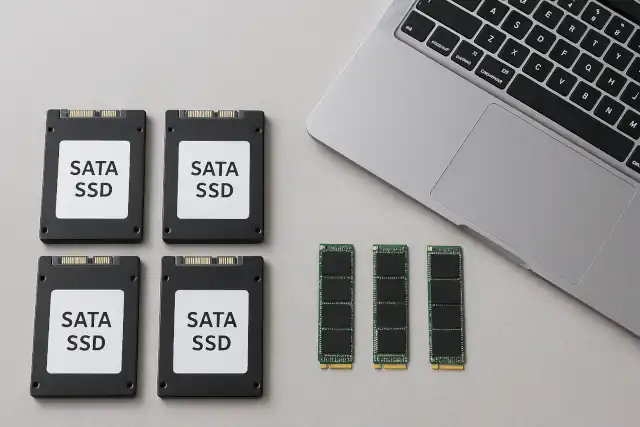
- SATA SSDs: 500-550 MB/s read/write
- NVMe SSDs (PCIe 3.0): 2,000-3,500 MB/s read/write
- NVMe SSDs (PCIe 4.0): 5,000-7,000 MB/s read/write
- NVMe SSDs (PCIe 5.0): 10,000+ MB/s read/write
If your results are significantly lower than expected, check your SATA/NVMe connections, ensure TRIM is enabled, verify your drive isn’t nearly full (SSDs slow down when full), and check if your motherboard supports the full speed of your drive.
What is the best alternative to Microsoft Office?
Important Considerations
When testing SSD speeds, keep these points in mind. Benchmarking creates heavy disk activity, so close other applications first. Sequential speeds are typically higher than random speeds, which better reflect real-world performance. SSDs perform best with TRIM enabled, which you can verify with sudo fstrim -v /. Additionally, repeated write tests can wear down your SSD slightly, so don’t run them excessively.
Conclusion
Testing SSD performance in Linux is straightforward with the right tools. For quick checks, hdparm or dd work well. For comprehensive testing, fio is the preferred choice among professionals. Regular benchmarking can help you catch performance degradation early and ensure your storage system is operating optimally.