Migrating Your eSIM from Android to iPhone 17: A Complete Step-by-Step Guide
Migrating Your eSIM from Android to iPhone 17: A Complete Step-by-Step Guide
- Why Enterprise RAID Rebuilding Succeeds Where Consumer Arrays Fail?
- Linus Torvalds Rejects MMC Subsystem Updates for Linux 7.0: “Complete Garbage”
- The Man Who Maintained Sudo for 30 Years Now Struggles to Fund the Work That Powers Millions of Servers
- How Close Are Quantum Computers to Breaking RSA-2048?
- Why Windows 10 Users Are Flocking to Zorin OS 18 Instead of Linux Mint?
- How to Prevent Ransomware Infection Risks?
- What is the best alternative to Microsoft Office?
Migrating Your eSIM from Android to iPhone 17: A Complete Step-by-Step Guide
With Apple’s iPhone 17 series now supporting only eSIMs in multiple countries worldwide, millions of users are preparing to make the switch from traditional physical SIM cards or transfer their existing eSIMs from Android devices.
This transition marks a significant shift in mobile connectivity, but with proper preparation and understanding of the process, migrating your eSIM from Android to the iPhone 17 can be straightforward.
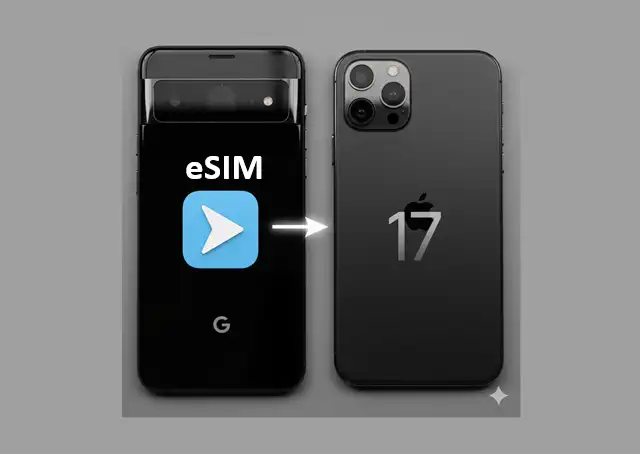
Understanding eSIM Technology and the Migration Process
Before diving into the migration steps, it’s crucial to understand that there’s no direct app or setting that allows for automatic transfer of eSIMs between different platforms. Unlike transferring between two iPhones, moving from Android to iPhone requires a manual process that involves deactivating the eSIM on your Android device and setting it up fresh on your iPhone 17.
The migration process essentially involves three key phases: preparation and verification, deactivation of the current eSIM, and activation on the new device. Each phase requires careful attention to ensure a smooth transition without service interruption.
Prerequisites and Compatibility Check
Before beginning the migration process, you’ll need to verify several critical requirements. First, confirm that your Android device currently supports eSIM technology. You can check this by going to Settings > Network & internet > Mobile network and looking for the “Add mobile plan” option. If this option is present, your Android device supports eSIM.
Next, ensure your carrier supports eSIM transfers between different device platforms. Major carriers like AT&T, T-Mobile, Vodafone, and Orange now support eSIM technology, but policies regarding cross-platform transfers may vary. Contact your carrier’s customer service to confirm they support Android-to-iPhone eSIM transfers and understand any specific requirements they may have.
Additionally, make sure you have your account information readily available, including your account number, phone number, and the IMEI number of your new iPhone 17. You can find your iPhone’s IMEI by going to Settings > General > About, or by dialing *#06# on the device.
Step-by-Step Migration Process
Phase 1: Preparing Your Android Device
Start by ensuring your Android device has a stable internet connection, preferably Wi-Fi, as the process will require downloading new eSIM profiles. Back up any important data from your Android device, as you’ll be removing the eSIM profile during this process.
Document your current mobile plan details, including your phone number, carrier name, and any specific plan features. Take screenshots of your current mobile settings for reference. This information will be helpful when setting up the eSIM on your iPhone 17.
Phase 2: Deactivating the eSIM on Android
Navigate to your Android device’s Settings menu and select “Network & internet” or “Connections” (the exact wording may vary depending on your Android version and manufacturer). Look for “Mobile network,” “SIM cards,” or “eSIM” options.
Find your active eSIM profile and select it. Look for options like “Remove,” “Delete,” or “Turn off.” The process may require confirmation and could take a few minutes to complete. In many cases, you’ll need to deactivate your eSIM on the current device before setting it up on the new device.
Some Android devices may require you to completely remove the eSIM profile rather than just turning it off. Follow the on-screen prompts carefully, as this step is irreversible without carrier intervention.
Phase 3: Contacting Your Carrier
Once you’ve deactivated the eSIM on your Android device, contact your carrier immediately. Provide your account number, phone number, and IMEI of your new iPhone 17, and let them know you want to transfer your eSIM to the new device.
Your carrier will guide you through their specific process, which may involve generating a new QR code, sending activation instructions via email, or using their mobile app. Some carriers offer QR codes for eSIM activation through their website or mobile app, making the process more streamlined.
Be prepared to verify your identity through security questions or account verification procedures. This step is crucial for protecting your account and ensuring the eSIM is transferred to the correct device.
Phase 4: Setting Up eSIM on iPhone 17
With your new activation credentials from your carrier, you can now set up the eSIM on your iPhone 17. On your new iPhone, go to Settings > Cellular > Setup Cellular or Add eSIM to begin the activation process.
If your carrier provided a QR code, select “Scan QR Code” and use your iPhone’s camera to scan the code. Alternatively, if your carrier supports app-based activation, download their official app and follow the in-app instructions for eSIM setup.
The activation process typically takes a few minutes, during which your iPhone will download and install the eSIM profile. Ensure you have a stable internet connection throughout this process, as interruptions can cause activation failures.
Troubleshooting Common Issues
During the migration process, you might encounter several common issues. If the eSIM activation fails, first verify that you’ve completely deactivated the eSIM on your Android device. Some carriers require a waiting period between deactivation and reactivation, typically ranging from a few minutes to several hours.
If you receive error messages during iPhone activation, restart your iPhone 17 and ensure you have the latest iOS version installed. Contact your carrier if activation continues to fail, as they may need to reset the eSIM profile on their end.
Network connectivity issues after successful activation often resolve within a few hours as the carrier systems update. However, if problems persist beyond 24 hours, contact your carrier’s technical support for assistance.
Optimizing Your New eSIM Setup
Once your eSIM is successfully activated on the iPhone 17, take time to configure your cellular settings optimally. Review your data usage settings, ensure your preferred network selection is configured correctly, and test both voice calls and data connectivity.
Consider enabling Wi-Fi Calling if your carrier supports it, as this feature can improve call quality and coverage. Update your emergency contact information and ensure your new device is properly registered with emergency services.
If you frequently travel internationally, research your carrier’s international eSIM options or consider downloading travel-specific eSIM apps that can provide temporary connectivity in other countries.
Future Considerations and Best Practices
As eSIM technology continues to evolve, staying informed about your carrier’s eSIM policies and features will help you make the most of this technology. Newer Android versions and iOS updates continue to improve eSIM transfer capabilities, with built-in features and carrier apps making the process faster and more reliable.
Consider keeping your eSIM activation information secure and easily accessible for future device changes. Document the process and any carrier-specific requirements for reference during your next device upgrade.
Remember that while the initial migration from Android to iPhone 17 requires manual intervention, future transfers between iPhones or modern Android devices may offer more streamlined options as the technology matures.
Conclusion
Migrating your eSIM from an Android device to the new iPhone 17 requires careful preparation and coordination with your carrier, but the process is manageable with the right approach. By following these detailed steps and maintaining clear communication with your carrier throughout the process, you can successfully transition to Apple’s eSIM-only future while maintaining uninterrupted mobile service.
The shift to eSIM-only devices represents the future of mobile connectivity, offering benefits like improved water resistance, more space for other components, and enhanced security. While the migration process currently requires manual intervention, the long-term advantages of eSIM technology make this transition worthwhile for most users.