The Most Windows-Friendly Linux Distributions for General Consumers: A Complete Guide
The Most Windows-Friendly Linux Distributions for General Consumers: A Complete Guide
- Why Enterprise RAID Rebuilding Succeeds Where Consumer Arrays Fail?
- Linus Torvalds Rejects MMC Subsystem Updates for Linux 7.0: “Complete Garbage”
- The Man Who Maintained Sudo for 30 Years Now Struggles to Fund the Work That Powers Millions of Servers
- How Close Are Quantum Computers to Breaking RSA-2048?
- Why Windows 10 Users Are Flocking to Zorin OS 18 Instead of Linux Mint?
- How to Prevent Ransomware Infection Risks?
- What is the best alternative to Microsoft Office?
The Most Windows-Friendly Linux Distributions for General Consumers: A Complete Guide
Introduction
For the millions of Windows users facing the end of Windows 10 support or simply seeking an alternative to Microsoft’s ecosystem, Linux has never been more accessible.
Gone are the days when using Linux required memorizing command-line incantations and manually compiling software. Modern Linux distributions offer polished, user-friendly experiences that rival or exceed Windows in many areas—all while being completely free and open-source.
However, not all Linux distributions are created equal when it comes to welcoming Windows refugees. This guide explores the most Windows-friendly options available today, focusing on distributions that minimize the learning curve while maximizing functionality for everyday computing tasks.
What Makes a Linux Distribution “Windows-Friendly”?
Before diving into specific recommendations, it’s important to understand what characteristics make a Linux distribution suitable for Windows users:
Familiar Interface: A desktop environment that resembles Windows’ layout, with a taskbar, start menu, and system tray in expected locations.
Pre-Installed Software: Essential applications like web browsers, office suites, media players, and file managers should work out of the box.
Hardware Compatibility: Automatic detection and configuration of common hardware components, including WiFi adapters, printers, and graphics cards.
Software Availability: Easy access to a wide range of applications through user-friendly software centers, similar to app stores.
Extensive Documentation: Comprehensive guides, tutorials, and active community forums to help users troubleshoot issues.
Stability: Reliable performance without frequent crashes or system-breaking updates.
Windows Software Support: Tools or compatibility layers to run Windows applications when necessary.
The Top Windows-Friendly Linux Distributions
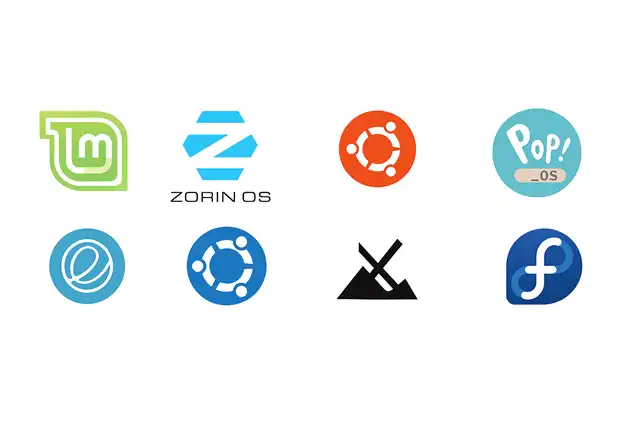
1. Linux Mint with Cinnamon Desktop: The Gold Standard for Windows Switchers
Why It’s Perfect for Windows Users:
Linux Mint consistently ranks as the best Linux distribution for beginners, and for good reason. The Cinnamon desktop environment was specifically designed to provide a familiar experience for Windows users, featuring a traditional layout that requires virtually no adjustment period.
When you boot Linux Mint, you’ll immediately recognize the interface: a taskbar along the bottom of the screen, a menu button in the lower-left corner (similar to Windows’ Start button), and a system tray in the lower-right corner displaying your network connection, volume control, and clock. This isn’t an accident—Cinnamon was intentionally crafted to be intuitive for users accustomed to Windows 7 and Windows 10 layouts.
Key Features:
-
Familiar Layout: The desktop metaphor mirrors Windows almost exactly, eliminating confusion about where to find settings, applications, or files.
-
Software Manager: An easy-to-use application store lets you browse, install, and update software with just a few clicks—no command line required.
-
Comprehensive Out-of-Box Experience: Linux Mint comes pre-loaded with essential applications including Firefox for web browsing, LibreOffice for documents and spreadsheets, media codecs for playing virtually any audio or video format, and even backup tools.
-
Excellent Hardware Support: Most hardware works immediately upon installation, with automatic driver detection for graphics cards, WiFi adapters, and peripherals.
-
Long-Term Support: Based on Ubuntu’s long-term support releases, Linux Mint provides security updates for years, ensuring your system remains secure without forced feature updates.
-
Active Community: With millions of users worldwide, you’ll find answers to virtually any question through forums, documentation, or community support channels.
Who Should Choose Linux Mint:
Linux Mint is ideal for anyone making their first venture into Linux, particularly those who prioritize stability and familiarity over cutting-edge features. It’s excellent for office work, web browsing, media consumption, and general everyday computing. The distribution’s conservative approach to updates means fewer surprises and more predictability—perfect for users who want their computer to “just work” without constant tinkering.
Potential Drawbacks:
Because Linux Mint prioritizes stability, it doesn’t always include the absolute latest software versions. Gamers seeking cutting-edge graphics driver support might prefer alternatives, though Mint is perfectly capable of handling most gaming needs through Steam and Proton.
2. Zorin OS: Designed Specifically for Windows Refugees
Why It’s Perfect for Windows Users:
Zorin OS 18 brings a refreshed design, powerful new features, and even more compatibility with the apps and services Windows users rely on. Unlike most Linux distributions that evolved organically over time, Zorin OS was purposefully built from the ground up to ease the transition for Windows and macOS users.
The attention to detail is remarkable. Zorin’s developers understand that switching operating systems isn’t just about technical compatibility—it’s about psychological comfort. Every aspect of Zorin OS has been refined to minimize the “foreignness” that often intimidates new Linux users.
Key Features:
-
Windows-Like Appearance: The default interface closely mimics Windows 10 and 11, complete with a centered start menu option, familiar window controls, and intuitive settings panels.
-
Zorin Appearance: A powerful customization tool lets you switch between different desktop layouts, including ones that emulate Windows 7, Windows 11, macOS, and more—all without installing different desktop environments.
-
Windows App Support: Zorin OS offers optional Windows App Support, allowing users to install and run many Windows applications, with users even able to double-click .exe files to install them.
-
Migration Assistant: Tools to help transfer your files, bookmarks, and settings from your Windows installation, making the switch as seamless as possible.
-
OneDrive Integration: Zorin OS 18 includes OneDrive in Files, addressing concrete anxieties holding many Windows users back from migrating.
-
Professional Polish: Every detail, from animations to sound effects, feels refined and professional—comparable to commercial operating systems.
-
Long-Term Support: Long-term support until 2029 ensures the OS will remain secure and stable for years, making it suitable for both individuals and organizations.
Who Should Choose Zorin OS:
Zorin OS is perfect for users who want the most Windows-like experience possible, including those who need to occasionally run Windows software. It’s particularly appealing to users transitioning from Windows 10 or 11 who want familiar aesthetics and workflow. The Pro version (available for a fee) includes additional layouts, premium support, and bundled productivity software, making it suitable for professional use.
Potential Drawbacks:
Some advanced features are reserved for the paid Pro version, though the free Core edition includes everything most users need. The distribution’s heavy focus on polish means it might consume slightly more system resources than lighter alternatives, though it still runs well on older hardware.
3. Ubuntu: The Popular Choice with Massive Community Support
Why It’s Perfect for Windows Users:
Ubuntu is the most popular Linux distribution in the world, and that popularity brings significant advantages for newcomers. When you encounter a problem or want to accomplish a task, the likelihood of finding a tutorial, forum post, or YouTube video covering your exact situation is higher with Ubuntu than any other distribution.
While Ubuntu’s GNOME desktop environment looks different from Windows—featuring a top bar, side dock, and activities overview—it’s highly intuitive once you spend a few minutes exploring. Many users actually prefer GNOME’s workflow after adapting to it, finding it more efficient than traditional desktop paradigms.
Key Features:
-
Unmatched Documentation: Decades of development and millions of users have created an enormous knowledge base covering virtually every conceivable scenario.
-
Software Compatibility: Developers often prioritize Ubuntu when releasing Linux versions of software, meaning you’ll have access to the widest range of applications.
-
Professional Use: Many businesses and educational institutions use Ubuntu, making skills transferable and increasing the availability of specialized software.
-
Regular Updates: Unlike some distributions that prioritize stability over newness, Ubuntu provides up-to-date software while maintaining reliability.
-
Cloud Integration: Ubuntu’s tight integration with cloud services makes it ideal for users who rely on online storage, development tools, or remote computing.
-
Hardware Support: As the most widely-used desktop Linux, Ubuntu has excellent hardware compatibility and often receives driver support before other distributions.
Who Should Choose Ubuntu:
Ubuntu suits users who don’t mind adapting to a different desktop paradigm in exchange for access to the largest Linux ecosystem. It’s excellent for professionals, developers, students, and anyone who might benefit from Ubuntu’s extensive documentation and software availability. The distribution works equally well for casual users, creative professionals, programmers, and system administrators.
Potential Drawbacks:
The GNOME desktop requires some adjustment for Windows users accustomed to taskbar-based workflows, though many find it superior once they adapt. Ubuntu’s default settings include some telemetry (anonymous usage statistics), though this can be easily disabled. Some users prefer alternatives due to philosophical differences about Ubuntu’s approach to open-source software and commercial partnerships.
4. Pop!_OS: The Gamer and Creator’s Choice
Why It’s Perfect for Windows Users:
Developed by System76, a company that manufactures Linux computers, Pop!_OS represents what happens when hardware manufacturers design their own operating system. The result is exceptional out-of-box hardware support, particularly for graphics cards—crucial for gaming and creative work.
Pop!_OS takes Ubuntu as its foundation and refines it specifically for performance, particularly for graphics-intensive tasks. If you’re a gamer, video editor, 3D artist, or anyone who pushes their hardware, Pop!_OS deserves serious consideration.
Key Features:
-
Superior Graphics Support: Automatic installation and configuration of NVIDIA and AMD graphics drivers, eliminating one of Linux’s traditional pain points.
-
Gaming Optimization: Built-in support for Steam, Proton, and GameMode ensures games run at their best performance.
-
Auto-Tiling Window Management: Unique among these recommendations, Pop!_OS includes automatic window tiling that helps you organize multiple applications efficiently—you can disable this if you prefer traditional window management.
-
Recovery Partition: A built-in recovery partition allows you to refresh your installation or restore from backup without external media.
-
Performance Focus: System resources are optimized for performance rather than visual effects, making it snappy even on modest hardware.
-
Clean Interface: Based on GNOME but with System76’s refinements, the interface is modern and distraction-free.
Who Should Choose Pop!_OS:
Pop!_OS is ideal for gamers making the switch from Windows, creative professionals working with video, 3D, or photo editing, and power users who want maximum performance from their hardware. It’s also excellent for programmers and developers who need a responsive, reliable development environment. If you use your computer for resource-intensive tasks, Pop!_OS should be on your shortlist.
Potential Drawbacks:
Like Ubuntu, Pop!_OS uses GNOME, which differs from Windows’ desktop paradigm. The auto-tiling feature, while powerful, might confuse users expecting traditional window behavior (though it can be disabled). The distribution is relatively young compared to established options like Ubuntu and Linux Mint, meaning fewer tutorials specifically target Pop!_OS—though Ubuntu guides generally apply.
5. Elementary OS: Beauty Meets Simplicity
Why It’s Perfect for Windows Users:
Elementary OS takes a different approach from other distributions on this list. Rather than trying to look like Windows, it presents a beautifully designed, cohesive interface that prioritizes simplicity and elegance. Think of it as the macOS of the Linux world—refined, intuitive, and aesthetically focused.
While this might seem counterintuitive for Windows users, Elementary OS’s exceptional design actually makes it highly approachable for newcomers. Everything is where you’d expect it to be, the interface is clutter-free, and the learning curve is gentle despite the unfamiliar appearance.
Key Features:
-
Gorgeous Design: Every detail is carefully crafted, from icons to animations, creating a premium feel that rivals commercial operating systems.
-
Curated Applications: Rather than overwhelming users with thousands of applications, Elementary’s AppCenter features a curated selection of high-quality, well-designed software.
-
Privacy-Focused: No data collection, no telemetry, no advertising—just a clean operating system that respects your privacy.
-
Intuitive Workflows: Despite not looking like Windows, Elementary’s workflows are logical and consistent, making it easy to learn.
-
Pay-What-You-Want Model: While free to download, Elementary encourages (but doesn’t require) users to pay for the distribution, supporting ongoing development.
-
Multitasking View: A beautiful overview of all your open windows and workspaces helps you stay organized.
Who Should Choose Elementary OS:
Elementary OS appeals to users who appreciate design, value privacy, and want a clean, distraction-free computing environment. It’s excellent for writers, students, office workers, and anyone who primarily uses their computer for web browsing, email, document creation, and media consumption. If you found Windows cluttered or confusing, Elementary’s simplicity might be exactly what you need.
Potential Drawbacks:
The AppCenter’s curated approach means fewer available applications compared to Ubuntu or Linux Mint’s vast repositories, though you can still access Ubuntu’s full software library with some additional steps. The emphasis on design sometimes comes at the cost of power-user features. Some users find the pay-what-you-want model uncomfortable, though the distribution is completely free if you choose not to pay.
Honorable Mentions
Kubuntu (Ubuntu with KDE Plasma)
For users who want Ubuntu’s benefits with a more Windows-like interface, Kubuntu offers the KDE Plasma desktop environment—highly customizable and visually similar to Windows. However, the extensive customization options can overwhelm newcomers, making it better suited for users who enjoy tweaking their system.
MX Linux
Extremely lightweight and fast, MX Linux runs beautifully on older hardware while maintaining a familiar desktop layout. It’s less polished than the main recommendations but excellent for reviving aging computers.
Fedora Workstation
Used by developers and professionals, Fedora offers cutting-edge software and excellent support for emerging technologies. However, its focus on innovation over stability makes it less ideal for users seeking a “set it and forget it” experience.
How to Choose: A Decision Framework
With multiple excellent options available, here’s how to decide:
Choose Linux Mint if:
- You want the easiest transition from Windows
- You prioritize stability and reliability over cutting-edge features
- You need a system that works well for everyday tasks without complexity
- You’re new to Linux and want the safest, most mainstream choice
Choose Zorin OS if:
- You want the most Windows-like appearance and behavior
- You need to occasionally run Windows applications
- You appreciate professional polish and attention to detail
- You’re willing to consider the paid Pro version for additional features
Choose Ubuntu if:
- You want access to the largest software library and community
- You don’t mind learning a different desktop paradigm
- You need maximum compatibility with professional software and services
- You value having extensive documentation and tutorials available
Choose Pop!_OS if:
- You game on your computer or do graphics-intensive work
- You have NVIDIA graphics and want hassle-free driver support
- You want maximum performance from your hardware
- You’re comfortable with a modern, somewhat different desktop workflow
Choose Elementary OS if:
- You value beautiful design and simplicity
- You want a clutter-free, distraction-free computing experience
- Privacy is a priority for you
- You primarily use standard applications (browser, office, email, media)
Testing Before Committing: The Live USB Approach
One of Linux’s greatest advantages is the ability to test distributions before installing them. Here’s how:
Create a Live USB:
- Download your chosen distribution’s ISO file from its official website
- Use a tool like Rufus (on Windows), balenaEtcher, or Ventoy to create a bootable USB drive
- Restart your computer and boot from the USB drive
- Select “Try” or “Live Session” rather than “Install”
Test Drive: You can now use the distribution exactly as it would work if installed, without making any changes to your existing system. Test your hardware compatibility, try your most-used applications, explore the interface, and get a feel for whether it suits your needs.
Install When Ready: If you like what you see, you can install the distribution to your hard drive—either replacing Windows entirely, installing alongside Windows in a dual-boot configuration, or dedicating a separate hard drive to Linux.
Common Concerns Addressed
“Will my hardware work?”
Modern Linux distributions have excellent hardware support. WiFi, graphics, audio, and most peripherals work automatically. The best way to know for certain is to test via a live USB before installing.
“Can I still use Microsoft Office?”
You have several options: use Microsoft Office Online through a web browser, use LibreOffice (which handles Microsoft formats well), use Windows software compatibility layers, or run Windows applications through virtualization software.
“What about my games?”
Gaming on Linux has improved dramatically thanks to Steam’s Proton technology, which allows thousands of Windows games to run on Linux. Check ProtonDB.com to verify your specific games’ compatibility. Pop!_OS offers the best out-of-box gaming experience.
“Is Linux secure?”
Linux’s security model, combined with its open-source nature, makes it less vulnerable to malware than Windows. You don’t need antivirus software for general use, though safe computing practices (not running suspicious downloads, keeping software updated) always apply.
“Can I go back to Windows?”
If you dual-boot, you can always return to Windows. If you replace Windows entirely, you can reinstall it—though you’ll lose your Linux installation unless you’ve backed up your data. This is why testing with a live USB is so valuable.
Conclusion: The Linux Transition Has Never Been Easier
The Linux distributions highlighted in this guide represent years of development focused on user-friendliness, polish, and accessibility. Whether you’re fleeing Windows 10’s end of support, seeking a free alternative to expensive operating system licenses, wanting better privacy and control over your computer, or simply curious about alternatives, these distributions offer compelling options that require minimal compromise.
For most Windows users:
- Linux Mint represents the safest, smoothest transition path, combining familiar interfaces with rock-solid stability.
- Zorin OS offers the most Windows-like experience with exceptional attention to migration needs.
- Ubuntu provides unmatched community support and software availability.
- Pop!_OS excels for gaming and creative work.
- Elementary OS delivers beautiful simplicity for those willing to embrace a different approach.
The best way forward? Download a live USB of your top choice, test it for a day or two, and see how it feels. You might be surprised at how little you miss Windows—and how much you appreciate the freedom, security, and performance that Linux provides.
The Linux community welcomes you, and the future of computing is open-source.
What Are The Most Popular Linux Distribution of 2025?