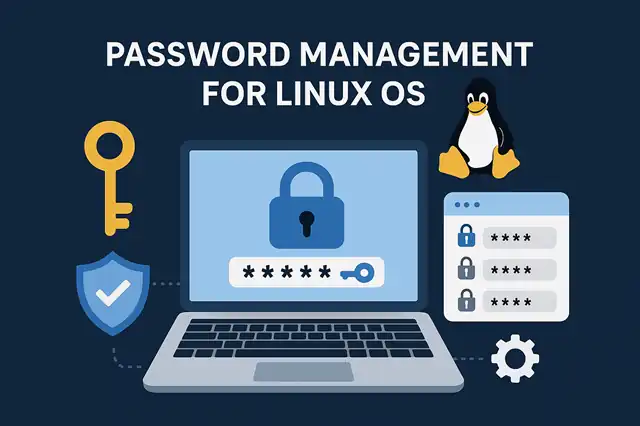
5 Essential Password Managers for Linux: Security Analysis and Installation Guide
5 Essential Password Managers for Linux: Security Analysis and Installation Guide
- 60% of MD5 Password Hashes Can Be Cracked in Under an Hour with a Single GPU
- Dirty Frag: Root Access on Every Major Linux Distribution — No Patch, No Warning
- Ubuntu 26.04 LTS (Resolute Raccoon): The Most Ambitious Ubuntu LTS in a Decade
- Proton Mail: Data Transferred to FBI Again!
- How Close Are Quantum Computers to Breaking RSA-2048?
- How to Prevent Ransomware Infection Risks?
- What is the best alternative to Microsoft Office?
5 Essential Password Managers for Linux: Security Analysis and Installation Guide
In an era where the average person manages dozens of online accounts, password managers have become indispensable tools for maintaining digital security.
Linux users are fortunate to have access to several robust, open-source password management solutions.
This article examines five popular options—Bitwarden, Buttercup, Pass, KeePassXC, and Passbolt—evaluating their security features and providing installation instructions.
What is the best alternative to Microsoft Office?
1. Bitwarden: The Cloud-Synced Powerhouse
Security Overview: Bitwarden stands out as one of the most trusted password managers in the Linux ecosystem. It employs end-to-end AES-256 bit encryption with PBKDF2 SHA-256 for key derivation. Your master password never leaves your device in plain text, and all encryption/decryption happens locally. The open-source nature of Bitwarden means its code has been audited by security researchers worldwide, and it has undergone third-party security audits.
The platform supports two-factor authentication (2FA) through various methods including authenticator apps, email, YubiKey, and FIDO2 WebAuthn. Bitwarden’s security model is considered excellent, though users should note that the encrypted vault is stored on cloud servers (though self-hosting is an option).
Installation:
# Using Snap
sudo snap install bitwarden

# Using Flatpak
flatpak install flathub com.bitwarden.desktop

# Using AppImage (download from bitwarden.com)
chmod +x Bitwarden-*.AppImage
./Bitwarden-*.AppImage
When and Why You Need Antivirus on Linux (and How to Install ClamAV)
2. Buttercup: The User-Friendly Alternative
Security Overview: Buttercup uses AES-256 CBC encryption to protect your password archives. While it’s a solid choice for everyday users, it has received less extensive security auditing compared to more established options like Bitwarden or KeePassXC. The application is open-source, allowing community review, but its smaller user base means fewer eyes on the code.
Buttercup stores your encrypted vault files locally or on cloud storage services of your choice (Dropbox, Google Drive, WebDAV), giving you control over where your data resides. However, it lacks some advanced security features like hardware key support found in other managers.
Installation:
# Using AppImage (download from buttercup.pw)
chmod +x Buttercup-*.AppImage
./Buttercup-*.AppImage

# Using npm (requires Node.js)
npm install -g @buttercup/desktop

# Debian/Ubuntu (via .deb package)
wget https://github.com/buttercup/buttercup-desktop/releases/download/v[version]/buttercup-desktop_[version]_amd64.deb
sudo dpkg -i buttercup-desktop_*.deb
Essential Security Measures to Implement Immediately After Linux OS Installation
3. Pass: The Unix Philosophy Approach
Security Overview: Pass (password-store) is arguably the most secure option for technical users who understand its model. It uses GPG encryption, leveraging the battle-tested OpenPGP standard. Each password is encrypted as an individual GPG file, stored in a simple directory structure. This approach means your security is as strong as your GPG key management.
Pass’s minimalist design eliminates attack surfaces present in more complex applications. It integrates seamlessly with version control systems like Git, allowing you to track changes and sync across devices securely. The main security consideration is ensuring your GPG private key is well-protected. Pass supports no cloud services directly—you manage synchronization yourself, typically through Git.
Installation:
# Debian/Ubuntu
sudo apt install pass

# Fedora
sudo dnf install pass

# Arch Linux
sudo pacman -S pass

# After installation, initialize with your GPG key
gpg --gen-key  # if you don't have a GPG key
pass init "your-gpg-key-id"
The Most Windows-Friendly Linux Distributions for General Consumers: A Complete Guide
4. KeePassXC: The Offline Security Champion
Security Overview: KeePassXC is the community-developed, cross-platform version of KeePass, featuring robust security that has earned widespread trust. It uses AES-256 or Twofish encryption with SHA-256 hashing, and supports Argon2 key derivation function—one of the strongest available. The database format (KDBX) is well-documented and has undergone extensive security analysis.
A key security advantage is that KeePassXC operates entirely offline by default—no cloud services, no internet connections required. Your encrypted database stays on your local machine (though you can sync it manually via USB drives, network shares, or cloud storage of your choice). It supports YubiKey and other hardware keys for additional protection.
KeePassXC has passed multiple security audits and has a strong reputation in the security community. The software includes features like password quality assessment, secure password generation, and automatic database locking.
Installation:
# Debian/Ubuntu
sudo apt install keepassxc

# Fedora
sudo dnf install keepassxc

# Arch Linux
sudo pacman -S keepassxc

# Snap
sudo snap install keepassxc

# Flatpak
flatpak install flathub org.keepassxc.KeePassXC
Replacing Microsoft Outlook on Linux: The Best Email Clients Compared
5. Passbolt: The Team Collaboration Solution
Security Overview: Passbolt is designed specifically for teams and organizations, with security architecture built around collaborative password sharing. It uses OpenPGP encryption (similar to Pass), with each user having their own GPG key pair. Passwords are encrypted individually for each user who has access, ensuring true end-to-end encryption even in shared scenarios.
Passbolt has undergone professional security audits and takes a security-first approach to team password management. However, it requires a server infrastructure—you must either self-host or use their cloud service. This added complexity introduces more potential attack vectors compared to simpler, local-only solutions.
The browser-based interface (though browser extensions are available) means security depends partly on browser security. Passbolt is overkill for individual users but excels in organizational contexts where password sharing is necessary.
Installation:
# Passbolt requires server setup. For the browser extension:
# Install from Firefox Add-ons or Chrome Web Store

# For self-hosting the server (Ubuntu/Debian example):
# Download the installation script
curl -LO https://downloads.passbolt.com/ce/installer/passbolt-repo-setup.ce.sh

# Run the installer
sudo bash passbolt-repo-setup.ce.sh

# Install Passbolt
sudo apt install passbolt-ce-server

# Configure the server
sudo passbolt-configure

# For detailed server setup, visit: https://help.passbolt.com/hosting/install
Why Do Linux Admins Still Use Root Despite Knowing the Risks?
Security Comparison Summary
Most Secure for Technical Users: Pass—minimal attack surface, proven GPG encryption, complete user control.
Best Audited Consumer Option: KeePassXC—extensive audits, offline-first, strong encryption with modern algorithms.
Best Cloud-Synced Solution: Bitwarden—well-audited, active development, professional security team, open-source.
Best for Teams: Passbolt—designed for secure sharing, end-to-end encryption in collaborative contexts.
Most Accessible for Beginners: Buttercup—user-friendly, though less proven than alternatives.
Linux Ecosystem’s Historic Breakthrough: Gaming AI and Kernel Innovation Converge
General Security Recommendations
Regardless of which password manager you choose:
- Use a strong master password: This is your single point of failure. Make it long, unique, and memorable.
- Enable two-factor authentication: If your chosen manager supports it, enable 2FA immediately.
- Keep software updated: Security patches are critical; enable automatic updates when possible.
- Backup your database: Regularly backup your encrypted password database to prevent data loss.
- Use unique passwords: Let the manager generate strong, unique passwords for every account.
Conclusion
Linux users have excellent password management options spanning different use cases and security models. KeePassXC offers the strongest offline security for individual users, while Bitwarden provides the best balance of security and convenience for those wanting cloud sync. Pass appeals to command-line enthusiasts seeking ultimate control, Passbolt serves organizations needing secure collaboration, and Buttercup offers approachability for those new to password management.
The “safest” option depends on your threat model: offline managers like KeePassXC eliminate cloud vulnerabilities but require manual syncing, while cloud-based solutions like Bitwarden introduce server trust but offer seamless multi-device access. Choose based on your technical comfort level, workflow needs, and security priorities—but most importantly, choose one and use it consistently. Any reputable password manager is vastly more secure than reusing passwords across services.