How to Encrypt Your Outgoing and Incoming Email?
How to Encrypt Your Outgoing and Incoming Email?
- 60% of MD5 Password Hashes Can Be Cracked in Under an Hour with a Single GPU
- Dirty Frag: Root Access on Every Major Linux Distribution — No Patch, No Warning
- Ubuntu 26.04 LTS (Resolute Raccoon): The Most Ambitious Ubuntu LTS in a Decade
- Proton Mail: Data Transferred to FBI Again!
- How Close Are Quantum Computers to Breaking RSA-2048?
- How to Prevent Ransomware Infection Risks?
- What is the best alternative to Microsoft Office?
How to Encrypt Your Outgoing and Incoming Email?
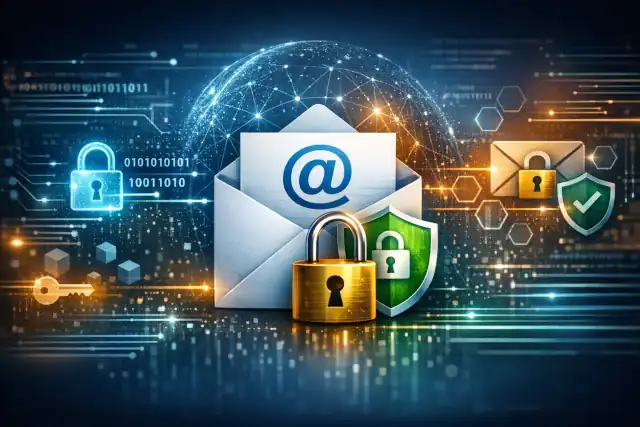
Unencrypted email is like sending a postcard — anyone along the delivery route can read it. This guide walks you through every layer of modern email encryption: from the transport layer that protects messages in transit, to true end-to-end encryption that keeps your content private even from the servers that carry it.
Why Email Encryption Matters in 2026
Email was never designed with privacy in mind. By default, messages travel across the internet as plain text, hopping through multiple servers — any of which can be tapped, logged, or compromised. Cybercriminals, surveillance agencies, and opportunistic hackers can all intercept unprotected messages without the sender or recipient ever knowing.
The consequences are significant. According to IBM’s Cost of a Data Breach Report, compromised credentials and phishing are responsible for nearly 40% of data breaches, with the average cost reaching millions per incident. Email is the primary attack surface.
Most people assume their email is already encrypted because their email client shows a padlock icon. That padlock usually refers only to the connection between your device and your email provider — not the content of the message itself. True end-to-end encryption is a different and much stronger standard.
Regulation has also raised the stakes. Laws like GDPR, HIPAA, and CJIS increasingly require organizations to protect sensitive communications. Encryption is both a privacy practice and, in many sectors, a legal obligation.
Understanding the Three Layers of Email Encryption
There is no single “email encryption.” In practice, protection happens at three distinct layers, and a truly secure email strategy combines all three.
“TLS protects email while it travels. End-to-end encryption keeps your messages secure everywhere they go — on servers, in backups, and even if hackers break into email systems.”
Method 1: PGP / OpenPGP — Maximum Privacy
PGP (Pretty Good Privacy) was developed by Phil Zimmermann in 1991 and remains the preferred standard for privacy-conscious users and security professionals. OpenPGP is its open-source implementation, supported natively by email clients like Mozilla Thunderbird.
How PGP Works
PGP uses public-key cryptography. Each user generates a pair of cryptographic keys: a public key — like a digital address you share freely — and a private key — like the key to your mailbox, which you never share. Anyone can use your public key to encrypt a message to you; only your private key can decrypt it.
Setting Up PGP: Step-by-Step
-
Install GPG (GnuPG)
On Linux:sudo apt install gnupg. On macOS: use Homebrewbrew install gnupg. On Windows: download Gpg4win, which includes Kleopatra as a graphical interface. -
Generate Your Key Pair
Rungpg --gen-keyin your terminal. You will be asked for your name, email address, and a strong passphrase. Choose at least 4096-bit RSA or an Ed25519 elliptic curve key for modern security. -
Export and Share Your Public Key
Rungpg --export --armor your@email.comto get your public key. Share it on a key server such askeys.openpgp.org, or send it directly to your contacts. -
Import Contacts’ Public Keys
Ask your recipients to share their public keys, or search key servers. Import withgpg --import their-key.asc. -
Enable PGP in Your Email Client
Mozilla Thunderbird has built-in OpenPGP support. In Thunderbird, go to Account Settings → End-To-End Encryption and link your generated key. For Gmail or webmail, use the Mailvelope browser extension, which adds a PGP layer directly in your browser.
# Generate a strong key pair (modern elliptic curve)
gpg --full-generate-key
# → Choose: (1) RSA and RSA  or  (9) ECC and ECC
# → Keysize: 4096 (for RSA) or Curve25519 (for ECC)
# → Expiry: 2y (recommended — rotate every 2 years)
# → Enter your name and email address

# Export your public key to share with others
gpg --armor --export your@email.com > my-public-key.asc

# Encrypt a message to a recipient
gpg --encrypt --armor --recipient recipient@example.com message.txt

# Decrypt an incoming encrypted message
gpg --decrypt message.txt.ascBefore trusting a public key, always verify the fingerprint with its owner over a different channel — a phone call, Signal message, or in person. Run gpg --fingerprint their@email.com and read the fingerprint aloud to confirm. This protects against man-in-the-middle key substitution attacks.
Method 2: S/MIME — The Enterprise Standard
S/MIME (Secure/Multipurpose Internet Mail Extensions) is the dominant encryption standard in corporate environments. Unlike PGP’s decentralized “Web of Trust” model, S/MIME relies on digital certificates issued by trusted Certificate Authorities (CAs) — the same trust infrastructure that powers HTTPS websites.
How to Set Up S/MIME
-
Obtain a Personal S/MIME Certificate
Get a free certificate from Actalis, GlobalSign, or Sectigo. For basic email validation, many CAs offer free 1-year certificates. Organizations should issue certificates centrally through a PKI or use a platform like Echoworx integrated with DigiCert for automated lifecycle management. -
Install the Certificate
In Microsoft Outlook: File → Options → Trust Center → Trust Center Settings → Email Security → Import/Export. In Apple Mail: Double-click the certificate file to add it to Keychain; Mail detects it automatically for your account. -
Exchange Certificates with Recipients
Send a digitally signed (not encrypted) email first. The recipient’s email client extracts your public certificate from the signature. Ask them to do the same. Once both certificates are exchanged, you can encrypt messages in both directions. -
Send an Encrypted Email
In Outlook, compose an email → Options ribbon → click Encrypt. In Apple Mail, a padlock icon appears in the compose window once the recipient’s certificate is available. Click it to encrypt.
S/MIME certificates typically require annual renewal. An expired certificate will break encrypted mail delivery silently. Set calendar reminders 30 days before expiry, or use an enterprise platform that automates renewal. Failing to renew is one of the most common causes of email encryption failures in organizations.
PGP vs. S/MIME: Which Should You Choose?
| Criteria | PGP / OpenPGP | S/MIME |
|---|---|---|
| Trust Model | Decentralized Web of Trust | Certificate Authority (centralized) |
| Cost | Free (open source) | Free basic → $100s/yr enterprise |
| Setup Complexity | Moderate — manual key management | Easier — integrated in Outlook, Apple Mail |
| Best For | Individuals, journalists, privacy-focused teams | Enterprises, compliance-driven orgs |
| Client Support | Thunderbird (native), Gmail (Mailvelope) | Outlook, Apple Mail, Gmail Workspace |
| Privacy Control | Full — no third-party authority | Partial — relies on CA |
| Scalability | Difficult at scale | Scales well with enterprise PKI |
| Legal Signatures | Not universally recognized | Legally valid digital signatures |
Transport Encryption: TLS and STARTTLS
Transport Layer Security (TLS) is the foundation all email providers use today. It encrypts the connection between mail servers so that messages cannot be read in transit by a network observer. STARTTLS is a command that upgrades a plaintext SMTP connection to an encrypted one automatically.
However, TLS has an important limitation: it only protects messages in transit. Email content at rest on servers remains unencrypted at the server level, and the server operator can technically read your mail. TLS alone is therefore not a substitute for end-to-end encryption.
Verifying TLS on Your Self-Hosted Server
# Test TLS connectivity to a mail server (Postfix example)
openssl s_client -starttls smtp -connect mail.yourdomain.com:587

# Check your certificate validity
openssl s_client -connect mail.yourdomain.com:465 2>/dev/null \
  | openssl x509 -noout -dates

# Postfix: enforce outbound TLS in main.cf
smtp_tls_security_level = may         # opportunistic TLS
smtp_tls_security_level = encrypt     # enforced TLS (stricter)
smtp_tls_loglevel = 1                  # log TLS handshakes
Managed Encrypted Email Services
If configuring PGP or S/MIME feels too technical, several hosted services handle encryption automatically at the platform level — no key management required from the user.
ProtonMail is the most widely adopted option, offering automatic PGP encryption between ProtonMail users and zero-knowledge architecture — meaning even Proton cannot read your messages. It is based in Switzerland and subject to strong privacy laws. For emails to non-ProtonMail recipients, you can set a password-protected encrypted message link.
Tutanota (now Tuta) uses its own symmetric encryption scheme rather than PGP. It encrypts the entire email including subject lines — something PGP and S/MIME do not do. Free tier available; business plans offer custom domains.
End-to-end encryption on these platforms typically works fully only when both sender and recipient are on the same service. When emailing external addresses, the encryption layer degrades to password-protected messages or standard TLS — the same as any other provider. For true universal E2EE, PGP or S/MIME remain the only standards that work across providers.
Self-Hosted Email with Full Encryption Control
For organizations or individuals who want complete control, running a self-hosted mail server is achievable. The recommended modern stack is Postfix + Dovecot, combined with Let’s Encrypt for TLS certificates, disk encryption (LUKS) for data at rest, and PGP or S/MIME for end-to-end encryption at the client layer.
All-in-One Self-Hosted Solutions
Mailcow is a Docker-based stack that includes Postfix, Dovecot, Rspamd (anti-spam), SOGo (webmail), and an administrative UI. It supports Let’s Encrypt certificate auto-renewal and integrates with DKIM/DMARC for deliverability. Stalwart is a newer Rust-based server with native JMAP support and strong built-in security defaults.
Essential DNS Authentication Records
For your outgoing email to be trusted and not flagged as spam, you must configure three authentication standards in DNS:
# SPF — specifies which servers may send for your domain
TXT  @  "v=spf1 mx a include:your-provider.com ~all"

# DKIM — cryptographic signature proving mail wasn't altered
TXT  mail._domainkey  "v=DKIM1; k=rsa; p=MIGfMA0GCSqGSI..."

# DMARC — policy for handling authentication failures
TXT  _dmarc  "v=DMARC1; p=quarantine; rua=mailto:dmarc@yourdomain.com"
Encrypting Email Attachments
PGP and S/MIME encrypt both the message body and attachments together when composing an encrypted email. However, when you need to send an encrypted file to someone who doesn’t use PGP or S/MIME, there are reliable fallback options:
-
AES-256 Encrypted ZIP / 7-Zip
Use 7-Zip with AES-256 encryption:7z a -p -mhe=on archive.7z file.pdf. Share the password via a separate channel — phone, Signal, or in person. Never send the password in the same email as the encrypted file. -
Password-Protected PDF
For documents, PDF password protection using AES-256 is widely compatible. Recipients need only a PDF viewer — no special software required. -
Secure File Transfer Links
Services like OnionShare, Tresorit, or Bitwarden Send allow you to share an encrypted file link. The link expires after download or a set time, reducing exposure.
Key Management Best Practices
Encryption is only as strong as how well you protect your private keys. Poor key management is the most common cause of encryption failures in practice.
-
Use a strong, unique passphrase
Protect your private key with a passphrase of at least 20 characters. Use a password manager to store it. A compromised private key means all previously encrypted messages are retroactively readable. -
Back up your private key securely
Export and store an encrypted backup on an offline medium (USB drive stored separately from your main device). For PGP:gpg --export-secret-keys --armor your@email.com > private-backup.asc -
Set key expiry dates
Use keys with a 2-year expiry and rotate them regularly. This limits damage if a key is ever compromised without your knowledge. Current best practices call for at least 2048-bit RSA keys, though Ed25519 elliptic curve keys are now preferred for their efficiency and security. -
Revoke compromised keys immediately
If you suspect your private key has been exposed, publish a revocation certificate to the key server immediately. For S/MIME, contact your Certificate Authority to revoke the certificate. -
Keep your software updated
GPG, Thunderbird, and S/MIME certificate tools receive regular security updates. Run updates routinely — many vulnerabilities are addressed within days of discovery.
What Email Encryption Cannot Do
Understanding the limits of email encryption is as important as understanding its capabilities.
Metadata is not encrypted. PGP and S/MIME encrypt the message body and attachments, but not the email envelope: sender address, recipient address, timestamp, and often the subject line remain visible to anyone who can see the message. This is significant for privacy against surveillance — even if the content is unreadable, the pattern of who communicates with whom is exposed.
Both parties must participate. True end-to-end encryption requires the recipient to also have PGP or S/MIME configured. If you send an encrypted email to someone who doesn’t support it, the encryption fails or degrades. This is the biggest real-world obstacle to widespread email encryption adoption.
Encryption doesn’t stop phishing. Encrypted email can still contain malicious links or social engineering. Encryption authenticates the sender and protects content in transit — it does not verify the intent of the sender or the safety of links within a message.
Quick-Reference Decision Guide
| Your Situation | Recommended Approach |
|---|---|
| Individual, privacy-focused | ProtonMail for easy setup, or Thunderbird + OpenPGP for maximum control |
| Small team / business | S/MIME certificates from a free CA (Actalis/Sectigo) + Outlook or Apple Mail |
| Large enterprise | Managed S/MIME via enterprise PKI or a platform like Echoworx + DigiCert |
| Journalist / activist | OpenPGP with Thunderbird + LUKS disk encryption + Tails OS for sensitive work |
| Self-hosted server | Mailcow or Mail-in-a-Box + Let’s Encrypt TLS + LUKS + PGP/S/MIME clients |
| Non-technical recipient | ProtonMail password-protected link or AES-256 encrypted 7-Zip attachment |
“The practical approach is layered: rely on TLS as the baseline, add S/MIME when confidentiality or compliance is required, and use PGP for edge cases where both sides can manage keys properly.”
Email encryption is not a single switch to flip — it is a layered discipline. Start with transport security (TLS is table stakes today), then add end-to-end encryption wherever the sensitivity of your communications warrants it. The tools have matured significantly: Thunderbird’s native OpenPGP support and the availability of automated S/MIME platforms have removed most of the friction that historically made email encryption impractical for everyday users.
The only encryption that doesn’t work is the encryption you never deploy.