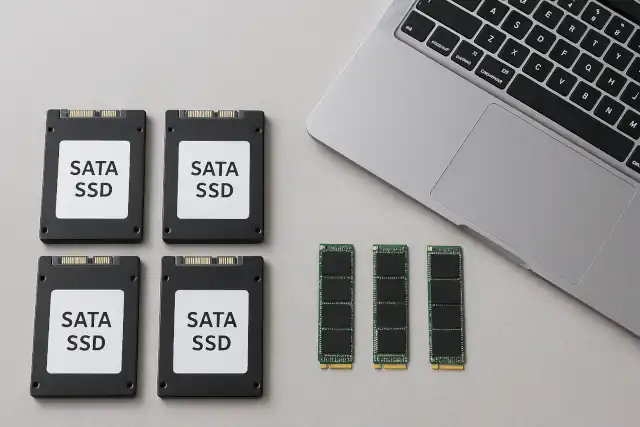
Does Windows Virtual Memory (Paging File) Actually Shorten Your SSD’s Lifespan?
- 60% of MD5 Password Hashes Can Be Cracked in Under an Hour with a Single GPU
- Dirty Frag: Root Access on Every Major Linux Distribution — No Patch, No Warning
- Ubuntu 26.04 LTS (Resolute Raccoon): The Most Ambitious Ubuntu LTS in a Decade
- Proton Mail: Data Transferred to FBI Again!
- How Close Are Quantum Computers to Breaking RSA-2048?
- How to Prevent Ransomware Infection Risks?
- What is the best alternative to Microsoft Office?
Does Windows Virtual Memory (Paging File) Actually Shorten Your SSD’s Lifespan?
The definitive, evidence-based answer — cutting through years of conflicting forum advice.
Short answer: Yes, the paging file does contribute to SSD write wear — but under normal use, the impact is so small relative to modern SSD endurance ratings that it will not meaningfully shorten your drive’s life. The real concern is only for very low-RAM systems running memory-heavy workloads.
What Is the Paging File, and Why Does It Exist?
Windows’ paging file — also called virtual memory — is a reserved area on your storage drive that the operating system uses as an overflow buffer when physical RAM runs low. When your RAM fills up with active data, Windows moves less-urgent information out to this file, freeing up RAM for the tasks you’re actually working on.
Beyond overflow management, the paging file serves several other system-critical roles:
Virtual Memory Expansion
When physical RAM is exhausted, idle background data is offloaded to the paging file so foreground programs keep running without crashing.
Crash Dump Storage
In the event of a blue screen (BSOD), Windows writes a memory dump to — or via — the paging file. Without it, crash diagnostics are lost or limited.
Legacy App Compatibility
Some older applications explicitly require a paging file to be present, even if they never actually use it. Removing it causes them to fail at launch.
Memory Commit Buffer
Windows uses the paging file as part of its memory commitment accounting — guaranteeing that all memory allocations made by applications can be honored.
How SSDs Wear Out — The Science Behind TBW
To evaluate the paging file’s real impact, you first need to understand how SSDs age. Unlike traditional hard drives, SSDs store data in NAND flash memory cells. Each cell can only be erased and rewritten a finite number of times — a count known as Program/Erase (P/E) cycles.
Manufacturers express an SSD’s total write endurance as TBW (Terabytes Written) — the total volume of data you can write to the drive over its lifetime before reliability starts to degrade. A related metric, DWPD (Drive Writes Per Day), expresses this as daily full-drive writes over the warranty period.
| Drive Class | Typical TBW | Daily Write Budget (5yr) | Write Risk |
|---|---|---|---|
| Entry Consumer SSD (500GB) | 150 – 300 TB | 82 – 164 GB/day | LOW |
| Mid-Range Consumer SSD (1TB) | 300 – 600 TB | 164 – 329 GB/day | LOW |
| High-Performance SSD (2TB+) | 600 TB – 1.2 PB | 329 – 657 GB/day | VERY LOW |
| Enterprise SSD | 3,500 TB+ | 1,972 GB/day | NEGLIGIBLE |
To put these numbers in human terms: reaching a 300 TB TBW limit would require writing over 160 GB every single day for five straight years. The average home user writes nowhere near that amount.
SSDs don’t abruptly fail the moment they hit their TBW rating — the figure represents the point at which the manufacturer can no longer guarantee reliability. In practice, many drives significantly exceed their rated TBW in real-world testing.
The Paging File’s Real-World Write Impact by RAM Amount
The paging file involves frequent random read/write operations, and on SSDs this does consume write cycles. However, the actual volume of writes depends heavily on how much RAM your system has — since more RAM means less need to page data to disk.
Memory runs full quickly with modern browsers, background apps, and any creative software. Paging activity is frequent and measurable. On smaller SSDs this accelerates wear most.
For everyday use, the paging file is called upon rarely. Daily writes from paging are a small fraction of total SSD writes. Wear contribution is negligible in practice.
The paging file may sit almost entirely idle during normal use. Its contribution to SSD wear is effectively indistinguishable from baseline system operations.
Windows’ “automatically manage paging file size” default causes the file to dynamically resize — expanding and shrinking based on demand. Each resize event writes large chunks of data back to disk, generating more write amplification than a fixed-size paging file would. This is the real culprit behind higher-than-expected SSD writes on default configurations, especially with 8–16 GB of RAM.
Correcting the Common Misconceptions
Several pieces of advice that circulate widely online are either oversimplified or factually incorrect. Here’s a clear-eyed verdict on each claim:
On disabling entirely: Users with 32 GB or more of RAM successfully run without a paging file. The main practical risks are loss of crash dump capability and occasional failures with older software. It is not an automatic path to blue screens, but it is also not recommended without understanding these trade-offs.
On SSD vs. HDD placement: Putting the paging file on an SSD gives faster performance. Putting it on an HDD reduces SSD write wear. Both are valid choices depending on whether you prioritize speed or longevity. The original framing of “always use SSD” without acknowledging this trade-off is incomplete.
Practical Recommendations Based on Your Setup
8 GB RAM — Most at risk
Consider upgrading RAM as the primary fix. As a secondary measure, set a fixed paging file size (e.g. 4096–8192 MB min/max equal) to eliminate resize-related write spikes. Reduce background app load to lower paging frequency.
16 GB RAM — Balanced users
Leave Windows on automatic management for everyday office and web use. For sustained high-load tasks like video editing or large compiles, set a fixed size equal to 1–1.5× your RAM to prevent dynamic resizing during sessions.
32 GB+ RAM — Power users
Automatic management is fine and introduces negligible wear. Advanced users who want to minimize writes may set a small fixed file (1024–2048 MB) to retain crash dump capability while eliminating dynamic resizing overhead.
Multi-drive systems (SSD + HDD)
If write longevity of your SSD is a priority, move the paging file to the HDD. The performance loss is only felt when RAM actually overflows — which on 16 GB+ systems is rare for typical workloads.
For the vast majority of users, leaving the paging file on Windows automatic management is the correct choice. The marginal SSD wear it produces is far outpaced by other daily write operations — game installs, browser cache, software updates — and nowhere near the TBW limits of modern drives. The cases where manual intervention pays off are narrow: very low RAM systems and sustained professional workloads on small SSDs.
The Bottom Line
The Windows paging file does, technically, shorten SSD lifespan by consuming write cycles. This is not in dispute. What is disputed — and often misrepresented — is the scale of that impact.
For a mainstream 1 TB SSD with a 300–600 TBW rating, a typical user would need to run a heavily paging system for a decade or more before the paging file alone became a meaningful contributor to drive failure. The people who should genuinely pay attention to this are users running 8 GB of RAM with memory-intensive workloads on small, older SSDs.
Everyone else: check your SSD’s health with a tool like CrystalDiskInfo once a year, keep your firmware updated, and stop worrying about the paging file.