Does Telemetry Service in Windows 11 Collect User Data and Upload It to Microsoft’s Servers?
Does Telemetry Service in Windows 11 Collect User Data and Upload It to Microsoft’s Servers?
- 60% of MD5 Password Hashes Can Be Cracked in Under an Hour with a Single GPU
- Dirty Frag: Root Access on Every Major Linux Distribution — No Patch, No Warning
- Ubuntu 26.04 LTS (Resolute Raccoon): The Most Ambitious Ubuntu LTS in a Decade
- Proton Mail: Data Transferred to FBI Again!
- How Close Are Quantum Computers to Breaking RSA-2048?
- How to Prevent Ransomware Infection Risks?
- What is the best alternative to Microsoft Office?
Does Telemetry Service in Windows 11 Collect User Data and Upload It to Microsoft’s Servers?
Yes, by default, Windows Telemetry does collect and upload user data to Microsoft’s servers.
This is a core function of the Windows operating system, designed to help the company improve its products and services.
Understanding what data is collected and how you can manage it is key to maintaining your privacy.
What Exactly Is Windows Telemetry?
Telemetry is an automated system for gathering data from a device. In the context of Windows, it’s a feature that collects information about how the operating system and applications are performing and being used. The stated purpose of this data is to help Microsoft:
-
Improve System Stability: Identify and fix crashes, bugs, and other performance issues more quickly.
-
Enhance Product Features: Understand how users interact with new features to refine and improve the user experience.
-
Ensure Security: Detect potential security threats and vulnerabilities across the user base.
What Information Does Telemetry Collect?
Microsoft categorizes the data it collects into two main levels: Required and Optional. The default settings in Windows 10 and 11 typically include both.
-
Required Diagnostic Data: This is the minimum level of data collection. It includes basic information that Microsoft considers essential for keeping Windows secure and up-to-date. This data is largely non-personal and focuses on the health and performance of your device. Examples include:
-
Device Information: Hardware details like the manufacturer, processor type, and amount of memory.
-
Connectivity and Configuration: Your network settings and how you’re connected to the internet.
-
Operating System Version: Information about which version of Windows you’re running.
-
Basic Error Reporting: Data about what happens when your device or an app crashes, without including any personal files.
-
-
Optional Diagnostic Data: This level collects more comprehensive data, including details about your activity. This data is what is often used for personalizing your experience and providing insights for product design. It can include:
-
App Usage: Which apps you use, how long you use them, and how they perform.
-
Input Data: How you interact with Windows, such as your mouse movements, pen usage, and keyboard presses.
-
Browsing History: If you use Microsoft Edge, this data can be collected to personalize ads and improve search results.
-
Detailed Error Reporting: More in-depth information about system crashes, which can sometimes include parts of documents or data that were in memory at the time of the crash.
-
How to Manage Your Telemetry Settings
For users concerned about their privacy, Microsoft provides several options to control the amount of data collected. The easiest way to manage this is directly through the Windows Settings app.
-
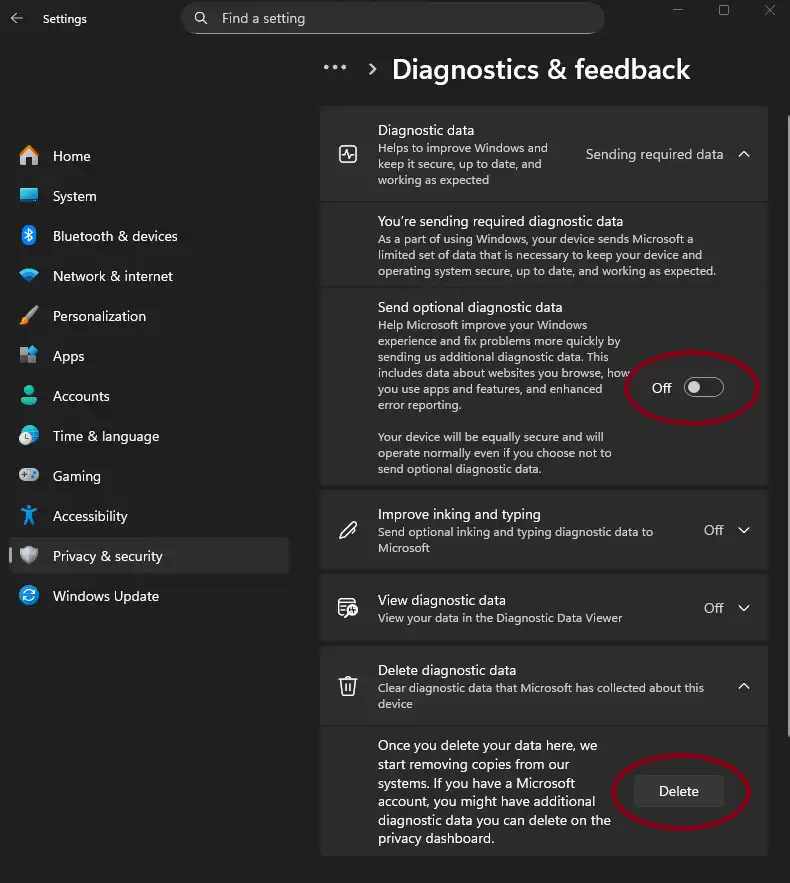
Navigate to Privacy Settings:
-
In Windows 10, go to Settings > Privacy > Diagnostics & feedback.
-
In Windows 11, go to Settings > Privacy & security > Diagnostics & feedback.
-
-
Adjust the Data Level: Here, you’ll see a toggle or an option to switch from “Optional diagnostic data” to “Required diagnostic data.” By selecting “Required,” you’ll significantly reduce the amount of information that is sent to Microsoft.
-
Delete Existing Data: You also have the option to delete any diagnostic data that has already been collected and sent from your device. This can be found in the same “Diagnostics & feedback” settings menu.
While you can limit data collection, completely stopping all Telemetry is difficult without using more advanced methods like the Group Policy Editor or Registry Editor.
This is because Microsoft considers some basic data collection necessary for maintaining the security and functionality of the Windows ecosystem.
For most users, setting Telemetry to the “Required” level provides a good balance between system functionality and personal privacy.