HDMI vs DisplayPort: Which Connection Should You Choose for Your PC Monitor?
HDMI vs DisplayPort: Which Connection Should You Choose for Your PC Monitor?
- 60% of MD5 Password Hashes Can Be Cracked in Under an Hour with a Single GPU
- Dirty Frag: Root Access on Every Major Linux Distribution — No Patch, No Warning
- Ubuntu 26.04 LTS (Resolute Raccoon): The Most Ambitious Ubuntu LTS in a Decade
- Proton Mail: Data Transferred to FBI Again!
- How Close Are Quantum Computers to Breaking RSA-2048?
- How to Prevent Ransomware Infection Risks?
- What is the best alternative to Microsoft Office?
HDMI vs DisplayPort: Which Connection Should You Choose for Your PC Monitor?
When setting up a PC monitor, one of the most common questions is whether to use HDMI or DisplayPort (DP).
While both are capable video interfaces, they have distinct advantages depending on your use case.
This article breaks down the key differences to help you make an informed decision.
Windows Software Alternatives in Linux OS
Bandwidth and Resolution/Refresh Rate Support
Bandwidth determines the maximum resolution and refresh rate an interface can support. The latest HDMI 2.1 standard offers 48Gbps bandwidth, supporting 4K at 120Hz or 8K at 60Hz uncompressed. With Display Stream Compression (DSC), it can push even higher combinations. The newly announced HDMI 2.2 in early 2025 doubles bandwidth to 96Gbps, though it hasn’t yet reached consumer monitors.
DisplayPort 1.4 provides 32.4Gbps bandwidth, sufficient for 4K at 120Hz or 8K at 30Hz (higher with DSC). The latest DP 2.1 standard (including the 2025 update to 2.1b) reaches up to 80Gbps in UHBR20 mode, supporting 4K at 240Hz and 8K at 120Hz uncompressed. This gives DisplayPort a significant edge in high-refresh gaming and professional applications, especially as graphics cards like NVIDIA’s RTX 50 series begin supporting DP 2.1.
The Most Windows-Friendly Linux Distributions for General Consumers: A Complete Guide
When to Choose DisplayPort
For PC monitors, particularly for gaming or productivity work, DisplayPort is the preferred choice for most users. Here’s why:
Superior bandwidth: DP 2.1 far exceeds HDMI 2.1, making it ideal for future-proofing with high-resolution, high-refresh displays. Many premium gaming monitors running 1440p at 360Hz or 4K at 240Hz rely on DisplayPort to achieve their full performance potential.
Better adaptive sync compatibility: DisplayPort natively supports both FreeSync (AMD) and G-Sync (NVIDIA) for reduced screen tearing. While HDMI also supports Variable Refresh Rate (VRR), implementation can be less stable on certain monitors compared to DisplayPort.
Multi-monitor convenience: DisplayPort supports Multi-Stream Transport (MST), allowing you to daisy-chain multiple monitors from a single port—perfect for multi-display productivity setups.
Secure connection: DisplayPort connectors feature a locking mechanism that prevents accidental disconnection, useful if you frequently move your setup.
If both your graphics card and monitor support DisplayPort, and you’re pursuing maximum performance (especially for competitive gaming), DisplayPort is the clear choice.
Replacing Microsoft Outlook on Linux: The Best Email Clients Compared
When HDMI Makes Sense
HDMI isn’t inferior—it simply excels in different scenarios:
Universal compatibility: Nearly every TV, gaming console (PS5, Xbox), and audiovisual device uses HDMI. It supports eARC (enhanced Audio Return Channel) for connecting soundbars or AV receivers, enabling immersive audio formats like Dolby Atmos.
Console gaming essential: The PS5 and Xbox Series X only output via HDMI 2.1. To get full 4K at 120Hz with VRR on these consoles, HDMI is required.
If you’re connecting to a TV or primarily play console games, HDMI is the practical choice. For PC use with only HDMI ports available, it’s perfectly adequate for resolutions up to 4K at 120Hz.
Free Project Management Software Alternatives to MS Project for Linux
Important Considerations
HDMI 2.1 “full” vs “limited” versions:
The HDMI 2.1 specification allows manufacturers to implement features partially, sometimes called HDMI 2.1 TMDS. This creates “limited” implementations that may only offer 18Gbps bandwidth (equivalent to HDMI 2.0), unable to deliver true 4K at 120Hz with HDR and VRR.
For genuine HDMI 2.1 performance, you need certified Ultra High Speed HDMI cables (48Gbps) and must verify that both your monitor and graphics card support the full FRL (Fixed Rate Link) specification. Otherwise, you may experience black screens or reduced refresh rates.
DisplayPort cable requirements:
While DP 1.4 is mature and widely compatible, DP 2.1 requires specific cable standards: DP40 (40Gbps), DP54 (54Gbps), or DP80 (80Gbps). Reputable retailers will clearly label these specifications.
Older DisplayPort cables may not unlock UHBR high-bandwidth modes, resulting in reduced performance—typically manifesting as an inability to set high refresh rates.
The Best Free Adobe Acrobat Alternatives for Linux
Final Recommendation
For PC monitors, prioritize DisplayPort connections. For home entertainment devices and TVs, HDMI is the better choice. This approach ensures you’re using each interface where it performs best.
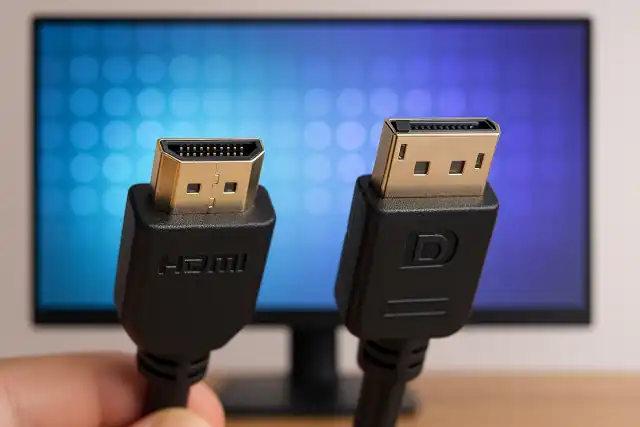
Comparison Table
| Feature | HDMI 2.1 | DisplayPort 2.1 |
|---|---|---|
| Maximum Bandwidth | 48Gbps (96Gbps for 2.2) | 80Gbps |
| 4K @ 120Hz Support | Yes (uncompressed) | Yes (uncompressed) |
| 4K @ 240Hz Support | With DSC compression | Yes (uncompressed) |
| 8K @ 60Hz Support | Yes | Yes |
| Adaptive Sync | VRR support (varies by device) | Native FreeSync/G-Sync |
| Multi-Monitor | Separate cables required | MST daisy-chaining |
| Connector Security | Friction fit | Locking mechanism |
| Audio Support | eARC for advanced audio | Standard audio |
| Console Compatibility | PS5, Xbox Series X | Not supported by consoles |
| TV Compatibility | Universal | Limited |
| Cable Requirements | Ultra High Speed certified | DP40/54/80 certified |
| Best Use Case | TVs, consoles, home theater | PC gaming, productivity, multi-monitor |
The choice ultimately depends on your specific setup and priorities, but understanding these differences ensures you get the most out of your display investment.